Getting Input from the user
A computer will not do very much if it can't get data from the outside world to process and store. So far all of our programs rely on setting up the data as part of the program beforehand.
It would be much more useful if we could ask the user to type in data and have the computer store it for us at the time the program was running
Watch the video, read the explanation and then try out the activities
This video introduces the input command so data can be typed at the keyboard whilst a program is running
The input command allows a program to temporarily stop and wait for the user to enter some data using the keyboard
Example of the input command
name = input("What is your name? ")
print(name)
This image explains how the input command is put together
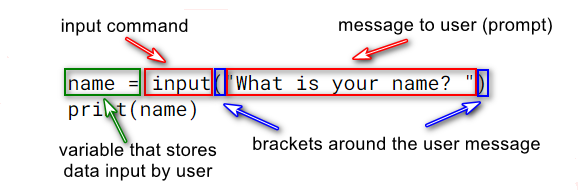
There are several parts to an input command:
- A variable (container) that stores data typed at the keyboard
- The input command itself
- A message to the user - it gives a clue to the user of what to type
Once the user has finished typing the program continues to run the next command in the program
Let's modify a program from earlier ( print command )
Press the run button and try out the program, run it several times with different names

You should see that the output automatically adds whatever was typed into the output of the print command. You no longer have to set up the program's variables first
Student task
Modify your program so that it asks the user of their favourite colour as well as their name, and outputs a message like this: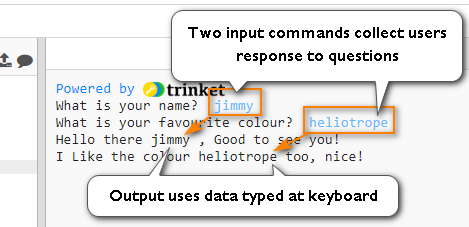
Use this code area to write your answer
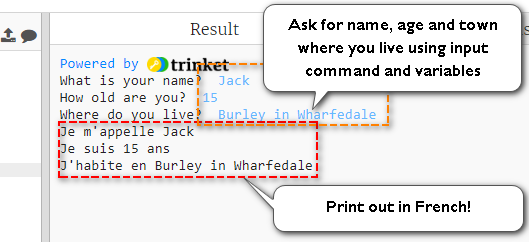
Write a program that does the following:
- Asks for your name, age and town where you live
- Use input commands to store these items of data in variables
- Prints out in French the data you typed in
Your program should produce output like this:
Go to the workbook for this module in your Google Classroom. All answers need to be placed in there.
You will need to include the following items:
- A screenshot of the code for Activity 4.1 showing it working
- A screenshot of your final code for Problem 4.1 showing it working